

Virtuemart Featured Product Grid Documentation
 |
| 
Installation
Install as normal using the Joomla installer.
Parameters
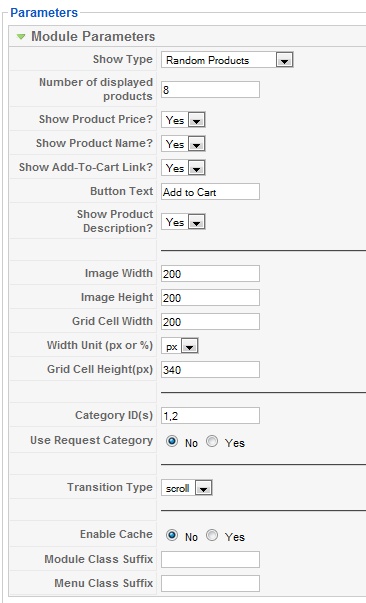
Module Type. The module parameters are illustrated below. The 'Show Type' parameter is used to select the type of product listing required. The options available are: random, most popular, most recently added, products on special offer, and listed products. For the type 'listed' you can list the ids of the products you wish to feature, as a comma separated list. Please note, if you use this feature, that the id number of a product is the number in the far right column of the Virtuemart product listing under 'id'.
Product Categories. The results can be filtered by category, either using a selected category list, or the current category. To use selected categories, set the Category IDs parameter: this can be a single Virtuemart product category id, a comma-separated list of categories, or can be blank to use all categories. Please note that the category id is the value in the far right column under 'id' when viewing the Virtuemart category tree.
Alternatively the module can filter the results for the current category when the category browse page or product details page is being viewed. To use this feature, set the 'Use Request Category' parameter to 'yes'. When other pages are being viewed, the module will display results for the categories listed for the relevant category.
Transition Type. The transition types (for the alternative images) available are scroll, fade or none.
Editing the Style
The style sheet for the module is in the module file assets/gallery.css. You should be able to style it as you wish simply by editing this file.
Some example stylings are:-
Making the product description visible in the grid view as well as list view.
Find the line
div.gridview div.browseImageHolder div.productDesc{display:none;}
and change the style to display:block
Moving the Product name to the top
Find the line
div.featuredProdGrid div.productName{
 width:100%;
 height:40px;
 font-size:1.0em;
 line-height: 20px;
 color:#000099;
 background-color:#ccccff;
 text-align:center;
 position:absolute; bottom:0px; left:0px;
 /*opacity:0.5;-moz-opacity:0.5;
 filter: progid:DXImageTransform.Microsoft.BasicImage(opacity=0.5);
 */
}
Change 'bottom:0px' to 'top:0px'.
If you also uncomment the code
/*opacity:0.5;-moz-opacity:0.5;
filter: progid:DXImageTransform.Microsoft.BasicImage(opacity=0.5); */
the product name will appear in a nice transparent overlay.
Javascript
The image scroller uses the Mootools javascript library, which is native to Joomla, so you will not need to download any further javascript libraries. The Virtuemart 1.1x version of the module is compatible with Mootools 1.1 (so not the Mootools upgrade plugin). The Virtuemart 2.x version of the module is compatible with all versions of Mootools supported by Joomla.
The module can coexist with JQuery extensions without problems.



-
-

- Prices are incorrect
- In Support Questions / Amazon Support Questions
- 15 hours 31 minutes ago
-
-
-
- Is it possible to display "format"
- In Support Questions / Amazon Support Questions
- 1 day 8 hours ago
-
-
-
- Amazon Virtuemart Integration
- In Support Questions / Amazon Support Questions
- 1 day 8 hours ago
-
-
-
- Cannot find Joomla XML setup file
- In Support Questions / Amazon Support Questions
- 1 day 12 hours ago
-
-
-
- Don't see the component of Google Base XML
- In Support Questions / Virtuemart Extensions Support Questions
- 3 days 11 hours ago
-